Almost all of these types of errors are caused by an out-of-date graphics driver! Because SPACE GASS now takes full advantage of the parallel processing power of your graphics card, it relies on the OpenGL graphical software that comes with your graphics driver. If your graphics driver is out-of-date then unpredictable and unstable behaviour can result. Because of this, if you experience SPACE GASS crashing, a black background on the screen, blackened reports or unexplained error messages then you should update your graphics driver before trying anything else. This is very important!
Some examples of what you might experience with an out-of-date graphics driver are shown below:
SPACE GASS core crash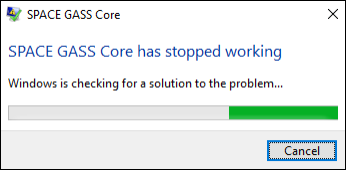
Black screen or report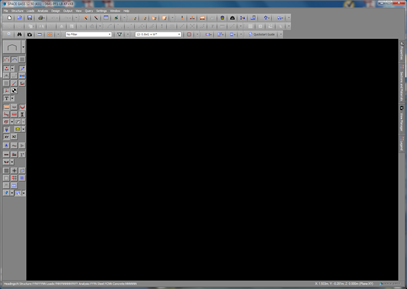
OpenGL error message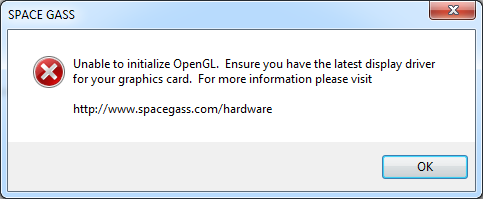
The steps to solve these types of problems are as follows:
- First of all establish exactly which graphics cards you have in your computer. You can do this by running SPACE GASS 12.50.436 or later, going to "Help => About SPACE GASS..." and looking at the graphics cards listed under "Available Cards". If you can't run SPACE GASS then you should run MSInfo32.exe from your Windows Start menu, expand the "Components" section of the menu tree on the left and then click on "Display" in the expanded tree. Detailed information about your graphics card(s) will then be displayed on the right. Note that if you have multiple graphics cards then you may need to scroll to see them all.
- You can skip this step if your computer has only one graphics card, however if you have multiple graphics cards (common in many laptops) then you should ensure that SPACE GASS is using the high performance card. By default, your computer will probably assign the slow onboard graphics card to SPACE GASS and you will not experience its true graphical performance unless you change it. For example, if you have an NVIDIA card, right-click on a blank space of your desktop and select "NVIDIA Control Panel". When the NVIDIA control panel appears, select "Manage 3D settings" in the menu on the left, click the "Program Settings" tab on the right, select sgwin.exe from your SPACE GASS program folder in the "Select a program to customize" list (click the "Add" button to add SPACE GASS to the list if it doesn't appear there), select "High-performance NVIDIA processor" in the "Select the preferred graphics processor for this program" list and then click the "Apply" button in the bottom-right corner.. For other brands of graphics cards the procedure depends on the type of card. For more detailed information, go to www.spacegass.com/hardware and refer to step 2 under "Optimize SPACE GASS To Use Your Hardware Correctly".
- Update the driver for the graphics card used by SPACE GASS via the card manufacturer's website. Do not use Windows Update! Links for some common graphics card manufacturers are: NVIDIA, AMD, ATI, HP and Intel. Note that if you are updating the driver for your graphics card, do not tick the box to install Raptr or PlaysTV because they will cause SPACE GASS and other high-end graphics programs to crash. If you still have problems after updating your graphics driver then check if Raptr or PlaysTV are installed and uninstall them!
- If the problem persists after completing the above steps then please generate a system information file, attach it to an email and send it to us at admin@spacegass.com along with a brief description of the problem. You can generate the system information file by running the SPACE GASS Utility Tool (via the Start menu => SPACE GASS Utility Tool), clicking the "Generate System Information File" button and then saving the SGSystemInfo.zip file to your desktop. Please be patient while the system information file is being generated as it may take a few minutes.
If you can't find the SPACE GASS Utility Tool in your Start menu (or if you don't have a Start button) then just browse to your "C:\Program Files\SPACE GASS 14.2" folder, locate "SPACEGASS Utility Tool.exe" and double-click it.
Was this article helpful?
That’s Great!
Thank you for your feedback
Sorry! We couldn't be helpful
Thank you for your feedback
Feedback sent
We appreciate your effort and will try to fix the article